JINK flagship Super Gateway · KNX
Order within the building.
Life, connected.
Bring KNX building control
Connect with your familiar smart home.
Map configured KNX functions to Matter.
Lighting, curtains, temperature and sensing share a common interface.

A compact core. A connected whole
Let the system handle complexity.
Leave ease to everyday life.
From a wall-button press to a scene on your phone.
The gateway bridges the configured KNX building system with everyday home controls.
Maximum number of subdevices
Dual-core Cortex-A53
Standard DIN-rail mounting
Wired IP network connection
Capacity refers to the gateway's documented maximum number of subdevices. It is not the number of KNX bus devices or group addresses. Check mapping methods and platform limits for the actual project.
Order becomes everyday life
Let every connection
reach into everyday life.
Light finds direction. Home responds.
Connectivity concept film · 8 seconds · Space and light paths
One home. Many moods
A welcome home.
The whole home responds gently.
Choose an everyday scene to see lighting and window coverings change.
Web scene demonstrations only; they do not connect to real devices. Automations require suitable devices, actuators and configured scene logic.
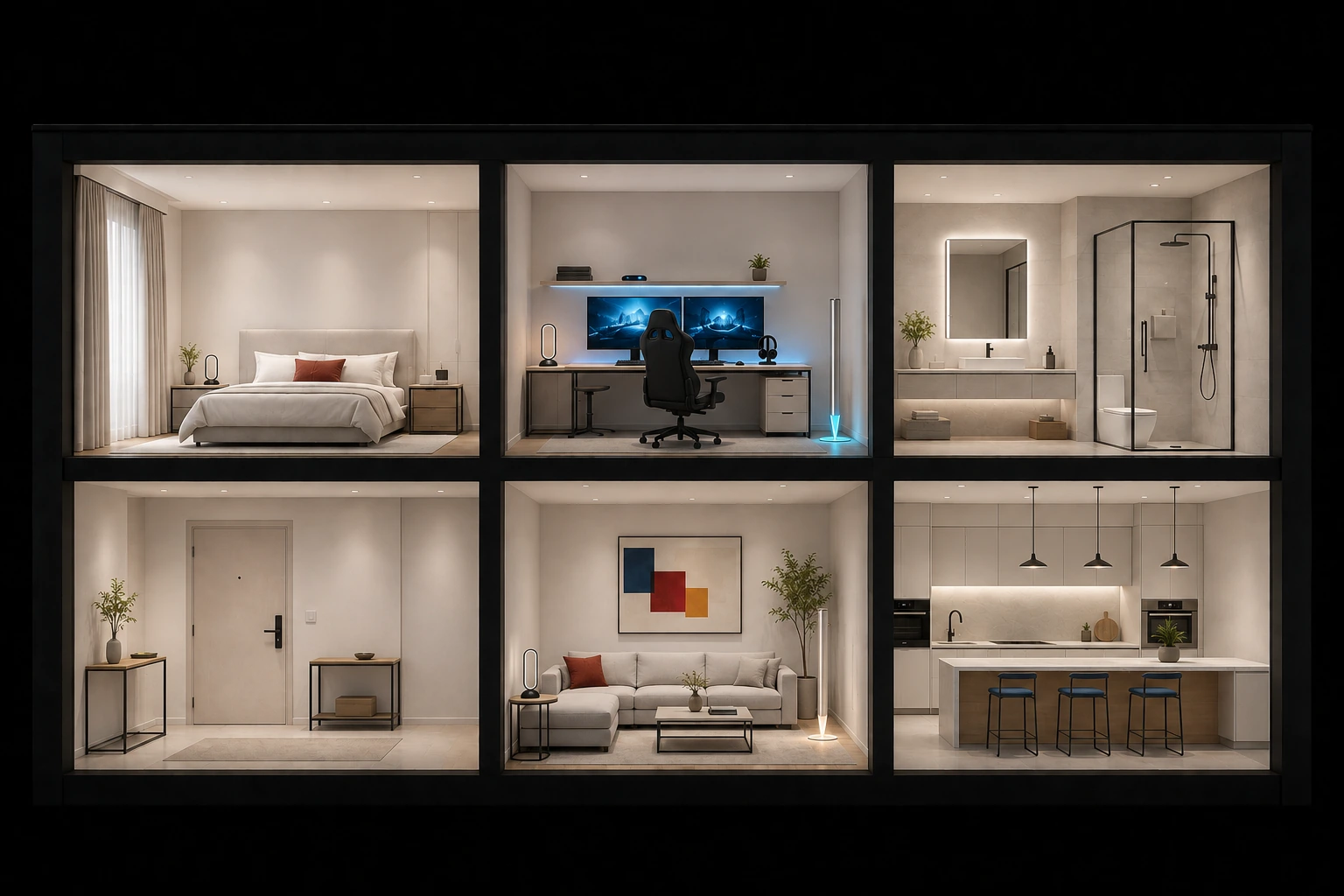
The door opens. Warm light welcomes you.
The entrance lights up, living-room lights soften and the curtains open the view.
Different languages. One home
KNX inside.
Matter outside.
Keep KNX’s building-control roles while bringing configured functions into compatible home platforms.
Group addresses and actuators on one side. Familiar rooms and devices on the other.
Panels · Sensors
Lighting / Curtain / HVAC actuators
Super Gateway KNX
Control and status correspondence
Compatible Matter controller
and smart home platforms
Topology illustrates functional relationships. Configure KNX bus power, device programming and IP networking separately. The gateway connects to the LAN over Ethernet; Thread requires its own suitable border router.
A bridge with distinct roles
Let every floor
Each has its role.
A clear system begins with clear roles.
Explore KNX group addresses ↗Configure device parameters, group objects and group-address associations in ETS. Verify switching, dimming and other functions on the bus first.
Enter control and feedback addresses for each device type, mapping functions to recognizable subdevices.
Add the gateway through a compatible Matter controller, then organise rooms and automations in your platform. Available controls depend on the platform and device type.
26 device types, each with a role
More than a connection.
Try every type.
From one light to an entire home. Explore switching, light colour, window coverings, temperature and status by device type.
Web function simulation only; it does not connect to real devices. Actual controls must match firmware, KNX actuators and the home platform.
Switches
Functions for the project
For different rooms,
Prepare the right connections.
Lighting and power
Switches, outlets, on/off lights, dimmable lights, tunable-white lights, RGBW and RGBCW lights.
curtainsandblinds
Curtain opening percentage, direction and status feedback; supported window-covering types can also map slat angle.
Air conditioning and heating
AC cooling/heating modes, target temperature, fan speed and room-temperature feedback. Thermostats and underfloor heating are distinct types.
Air and ventilation
Two- or three-speed ventilation, air purifiers and air-quality readings including PM2.5, PM10, CO₂ and TVOC.
Environment and security sensing
Presence, door and window, temperature and humidity, illuminance, water leak, smoke and carbon monoxide sensing.
Scenes and locks
Programmable buttons, scene numbers, virtual scenes and lock types. Check each device function and platform’s support.
Check device types against the current firmware. Not every platform displays every type or property. Sensor alarms and lock functions do not replace independent safety measures.
Refined homes · Design inspiration
At home in nature.
Ease of mind.
Technology within the architecture. Life open to the view.
These are residential design concepts, not completed project references. Configure functions for the actual equipment and project.

Warm lights among the trees.
Let configured scenes light the entrance and living room as you arrive. Greenery outside frames the warmth within, while control commands and feedback follow clear paths between KNX and the home platform.

A window view for every day.
Use curtain opening, supported slat angle and light brightness to shape daylight in the room. A reading scene needs each mapping to correspond correctly to the actual device.
Turn addresses into everyday controls
1/0/1。
Or simply “Living room main light”.
Group addresses create logical connections between KNX functions.
Map both “turn on” and “is it on now?”.
Living room main light
- Control
- 1/0/1
- Feedback
- 1/0/2
Edit the fields on the left to explore control and feedback mapping.
This demonstration is not an administration tool. It does not write to the gateway or validate real devices. A commissioning professional must check group-object length, datapoint type, direction and read/write flags.
See the actual status
More than sending a command.
It also receives the response.
Wall controls and phone controls should agree on the state of the same light.
Map actuator status-feedback addresses to the gateway’s feedback fields. Correct feedback lets the platform follow actual device changes. A control address alone does not ensure automatic status synchronization.
Leave capacity for the whole home
Up to 249 subdevices.
Plan with clarity.
Estimated use: 96 subdevices, with 153 remaining.
Estimate = rooms × average subdevices per room. A physical module may represent several functions or subdevices. Use the actual gateway configuration count and leave capacity for expansion.
Visible details. Capability within
Clear connections.
for an orderly system.

DC 24 V · Separate supply
White terminal: negative (−). Yellow terminal: positive (+). Supply: DC 24 V / 0.5 A.
Follow the physical terminal labels and the applicable model documentation. Do not interchange power and KNX bus wiring. Have a qualified professional install with power disconnected and verify polarity.
Order inside the distribution cabinet
35 mm DIN rail。
Built for projects.
90 × 72 × 63 mm
The connection core, in a compact space.
Plan power, bus and network cable routes, allowing access to terminals and room for cooling. Give the gateway and actuators clear positions for easier maintenance.
From project to home
Connect step by step.
Know each step.
From finding a device on the LAN to seeing rooms on your phone.
Commissioning path based on the V3.0 configuration guide.
Prepare the basic connections first.
Have a qualified professional connect DC24V power, the KNX bus and Ethernet, checking polarity and the network. Verify group addresses and actuator functions in the KNX project first.
Save a backup after adjustments
From configuration to maintenance.
The complete path.
Apply the changes
After changing a port or device, use “Apply configuration” in the administration workflow. Remove unneeded factory example devices before final pairing.
Keep records for future maintenance
After commissioning, export the configuration and save the project version. When replacing a device, import as documented, then recheck network and platform bindings.
Updates with a clear basis
Use the online or manual update method documented for the firmware. Back up first, confirm the package and model, then check devices and scenes after updating.
Can it import an ETS project directly?
The guide describes an Excel import test covering only some device types. It does not document direct import of ETS .knxproj projects. Treating this test as a universal one-click import is unsupported. Deliver projects according to the current administration version and verify each item.
Understand the connection boundaries
A local control path.
Remote access has requirements.
Matter is an IP-based connectivity standard.
Local control and remote access have different requirements.
Switch the internet state in the example on the right to explore the remaining connection requirements.
Discover Matter →- KNX bus functionsDepends on independent configuration, bus power and devices
- Local network controlGateway, local network and compatible controller must remain operational
- Remote access while awayInternet plus the platform’s required home hub / service
Illustrates dependencies; it does not guarantee that every device or automation works without internet. Voice, notifications and cloud services may require internet access.
One standard. More familiar interfaces
Let home
Fits your habits.
Matter provides a common connection foundation for different brands and platforms.
Use a compatible controller to add the gateway and its supported subdevices to the home.

Apple Home
Prepare a Matter-capable home hub, then add the gateway according to the configuration guide.
Apple's official guide ↗
Google Home
Confirm controller, network environment and support for bridged device types.
Google's official guide ↗
Amazon Alexa
Connect through Matter-capable devices. Available controls depend on the platform.
Amazon's official guide ↗
SmartThings
Check the Matter hub, app version and supported subdevice types.
SmartThings' official guide ↗Platform icons illustrate the ecosystem; subdevice types and functions may differ across platforms. The gateway uses Ethernet to join the IP network. Matter and Thread are different technologies.
Indicators speak a language too
Understand the status.
for easier maintenance.
Steady green: power normal.
Steady green: system started.
The green indicator flashes slowly during reset, then turns off when complete.
Two button durations. Two different actions.
5 secondsResetSTATUS flashes at 1 Hz. Add the gateway and subdevices again in the app after reset. User data is not deleted.
10 secondsRestore the previous configurationSTATUS flashes at 0.5 Hz. Restores the most recent configuration; this is not the same as erasing all settings.
If an incorrect press sequence fails to reach the required state, wait more than 30 seconds before trying again. Back up commissioned systems first and carry out maintenance with guidance from the commissioning professional.
Confirm once more before handover
A final acceptance check.
For every day ahead.
Checkmarks are recorded only on this webpage. They do not establish professional project acceptance.
Technical specifications
Confidence in the connection.
Within every detail.
- Products
- JINK Super Gateway KNX · Super Gateway
- Power supply
- DC24V / 0.5A
- Processor
- Dual-core Cortex-A53 · 1.8 GHz
- Memory / Storage
- 1 GB DDR3 / 8 GB eMMC
- Network
- 100M Ethernet × 1
- Interfaces
- KNX bus × 1; power input × 1
- Maximum subdevices
- 249 items
- Dimensions
- 90 L × 72 W × 63 H mm
- Installation
- Compatible with standard 35 mm DIN rail
- Configuration method
- Local web administration at the gateway IP address, port 3000
The enclosure is labelled LAN1 / LAN2, while the specification lists one 100 Mbps Ethernet port. Check available ports against the shipped version. The TCP expansion interface is not yet available.
JINKHOME after-sales service
Connected for the long term.
And confidence over time.
For product-quality issues under normal use, apply according to the service terms in the user manual.
View user instructions and service terms ↓Frequently asked questions
You may also want to know.
Can it replace KNX actuators directly?
No. The gateway maps functions and provides platform access. Lighting, curtains and climate still require appropriate actuators, supplies and a commissioned KNX project.
Why are some devices missing after adding the gateway?
First check that the configuration is applied and the mapping type is correct, then confirm platform support. The V3.0 guide notes that syncing a single added or removed device may take about 2–3 minutes. Avoid repeatedly re-pairing during that delay.
When is re-pairing needed?
After initial configuration and removing example devices, follow the guide to re-pair and generate pairing information. Avoid re-pairing a stable system unnecessarily: devices may need to be added again in the app. Configuration data is retained according to the guide.
What if the pairing QR code does not appear immediately?
Wait about one minute as documented; a larger setup, such as around 200 devices, may need about two minutes before refreshing. Confirm startup and configuration state rather than repeatedly interrupting the process.
What if I cannot find the gateway’s LAN address?
Check Ethernet and access from the same subnet. Find the documented hostname PandoraX in your router or use a LAN IP scanner, then open the gateway’s IP address on port 3000.
Why does the status differ even though control succeeds?
Check the feedback group address, datapoint type and actuator object’s status-transmission settings. Successful control alone does not confirm that the feedback path is configured.
Can it connect directly to every brand of KNX device?
Brand or KNX naming alone is insufficient. Check standard function objects, datapoint types, control/feedback addresses and mapping types supported by this gateway’s interface. Verify proprietary functions separately.
Must remote debugging remain enabled?
No. Enable it temporarily through the documented configuration only when support is needed, and disable it after commissioning. Do not expose the administration interface directly to the internet.
From connection to everyday life
Lights across homes.
Connected in one place.
Professional connections for an orderly building.
Keep home’s warmth in everyday life.
JINK Super Gateway KNX
Tell us about your KNX project ↗View configuration documents ↓